
How to Compare Clicks in the PhasedApproach Dyno Viewer
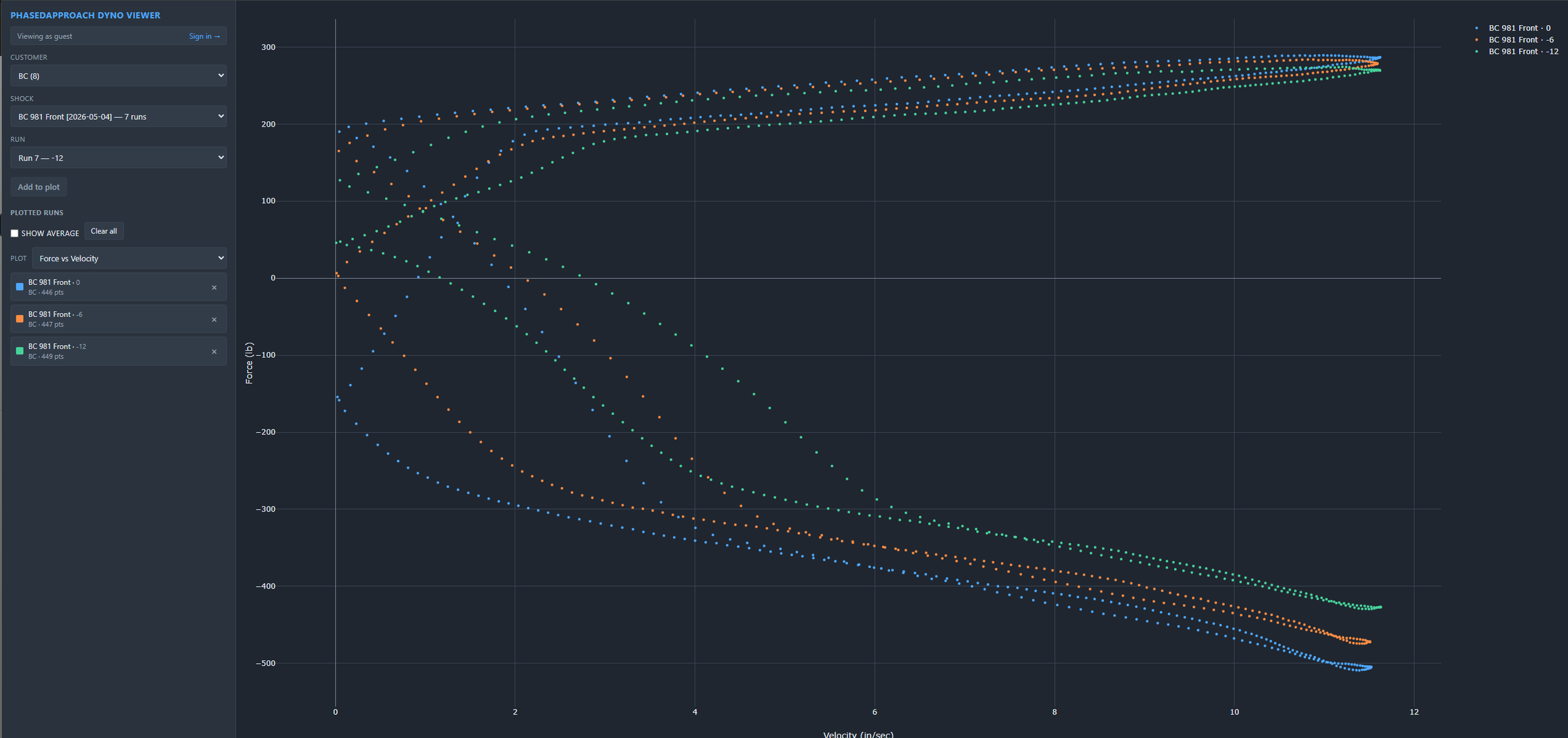
PhasedApproach Dyno Viewer with BC Racing Shock Data from a 981 Cayman
One of the most useful things you can do in the Dyno Viewer is line up several runs from the same shock to see exactly what your adjusters are doing. Each run is a different setting, whether that is a number of clicks on a knob or a change in bleed, and plotting them together shows you how force changes as you move through the range. Here is how to do it.

1. Select the customer (you!)
When the page loads, choose your customer profile from the Customer selector at the top. This loads the shocks and runs tied to your account. If you just want to see how the tool works, the guest mode will load the off-the-shelf BC Racing data for a few sample shocks we've chosen to share.

2. Pick your shock
With a customer selected, the shock selector fills in with the dampers on file. Choose the shock whose adjuster range you want to study.

3. Add your first setting
Each click or bleed setting is saved as its own run. Pick the first setting from the Run selector and click "Add to plot". It appears in the plotted runs list and draws on the graph.

4. Add the rest of the settings
Go back to the Run selector, choose the next click setting, and add it to the plot. Repeat for each setting you want to compare. They stack on the same graph so you can see them side by side, for example full soft, middle, and full stiff, or each click in between.

5. Read the spread
Switch between the two views depending on what you want to know:

Force vs. Velocity is where adjuster changes show up most clearly. As you step through clicks, you see the curves fan out, which tells you how much force each setting adds across shaft speeds and whether the steps between clicks are even or bunched up. Because the full data is shown rather than a single peak, each run also shows its hysteresis loop.

Force vs. Displacement shows where in the stroke each setting is acting, which helps you confirm the change is doing what you expect across the full travel.

Open it any time at apps.phasedapproach.com/dyno-viewer.